Provisioning Portal Users with Google
You can now streamline portal access for your team by enabling Google Single Sign-On (SSO) authentication. This feature allows team members to sign in to the portal using their existing Google credentials, eliminating the need to create and manage separate portal passwords.
With Google SSO, your organization benefits from:
- Simplified access management – Team members use credentials they already know and trust.
- Enhanced security – Leverage Google's authentication infrastructure and security features.
- Reduced administrative overhead – No need to handle password resets or manage additional credentials.
- Faster onboarding – New team members can access the portal immediately using their Google accounts.
Prerequisites
To successfully enable Google Portal SSO, you will need the following:
- Google Cloud Project: A dedicated project in the Google Cloud Console to manage API access.
- OAuth 2.0 Credentials (Web application client): A valid Client ID and Client Secret generated for a client of type Web application in the Google Cloud Console.
- Authorized JavaScript origins (OAuth 2.0 credentials). In the Authorized JavaScript origins section, add your Druid tenant URL to allow OAuth requests from the Druid Portal.
- Admin Permissions: You have a Druid Portal account with privileges to manage users.
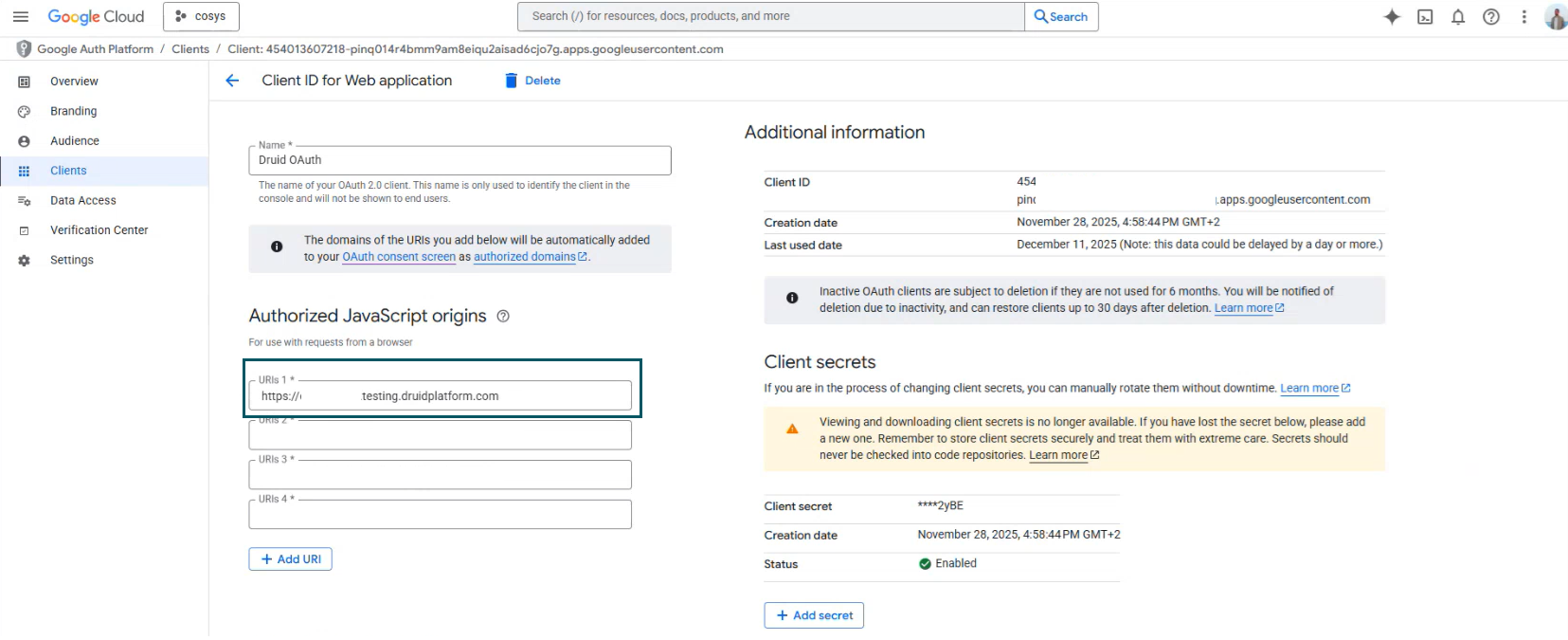
Configuration Steps
Once you have gathered the prerequisites, follow these steps to establish the connection:
Step 1. Set up roles for automatically provisioned users
To set up default role(s) to be assigned to automatically provisioned users, from the Administration menu, click Roles. Edit the desired role(s) by selecting Default. You can create a new roles with permissions specific to your organization and set it as Default.
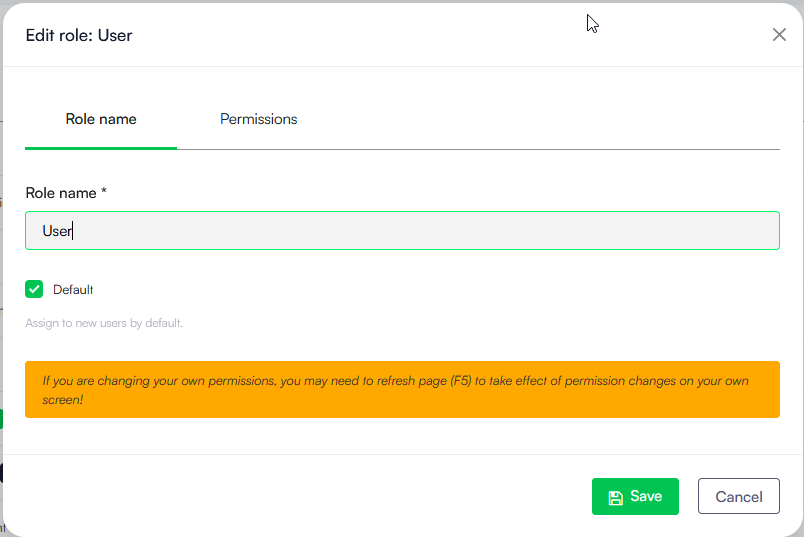
Whenever new users log in Druid Portal for the first time, they will be assigned with the default role(s).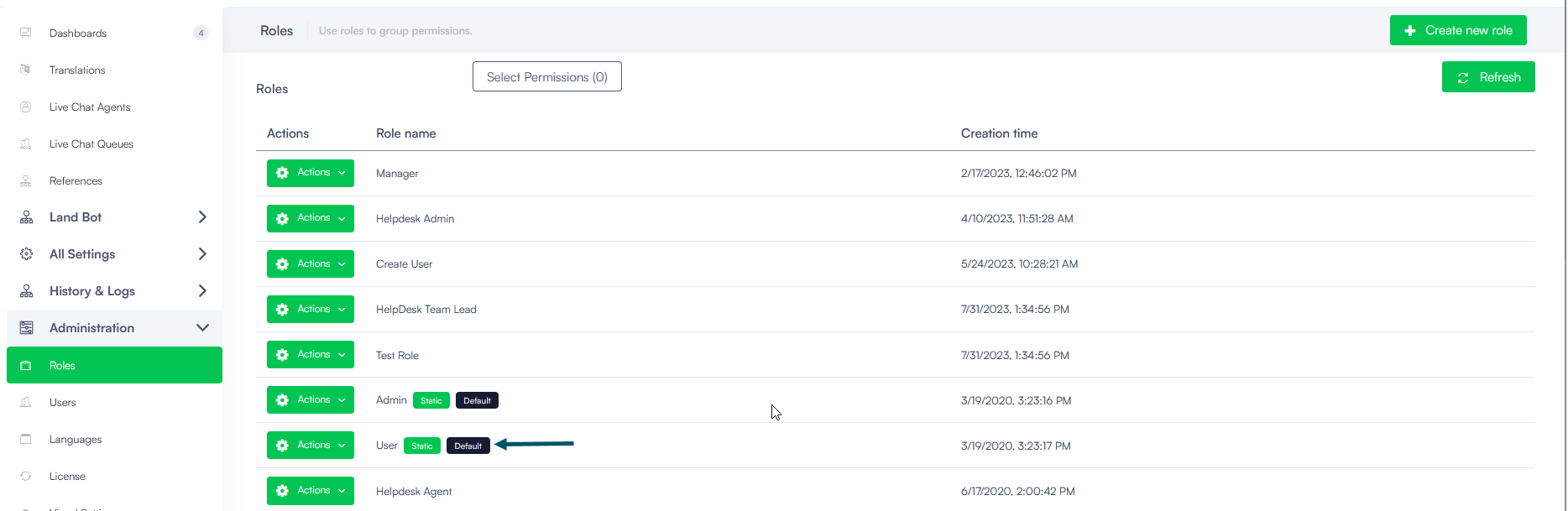
Step 2. Set up Druid Portal authentication with Google
To set up Druid Portal authentication with Google, in Druid Portal, from the Administration menu, click Settings and in the Settings page, click the External Login Settings tab.
Select Google and set the details described in the table below.
| Setting | Description |
|---|---|
| Email for new user notifications | Any email address that should receive notifications when new users sign up via Google SSO. We recommend entering the email address of a Druid Portal user in charge of reviewing users. This field is optional. |
| Client Id |
OAuth Client ID from Google.
|
| Client Secret |
OAuth client secret generated in Google. If you didn’t copy it when the credential was created, generate a new client secret in the Google Cloud Console.
|
| User Info Endpoint |
Enter Google’s standard endpoint: Copy
|
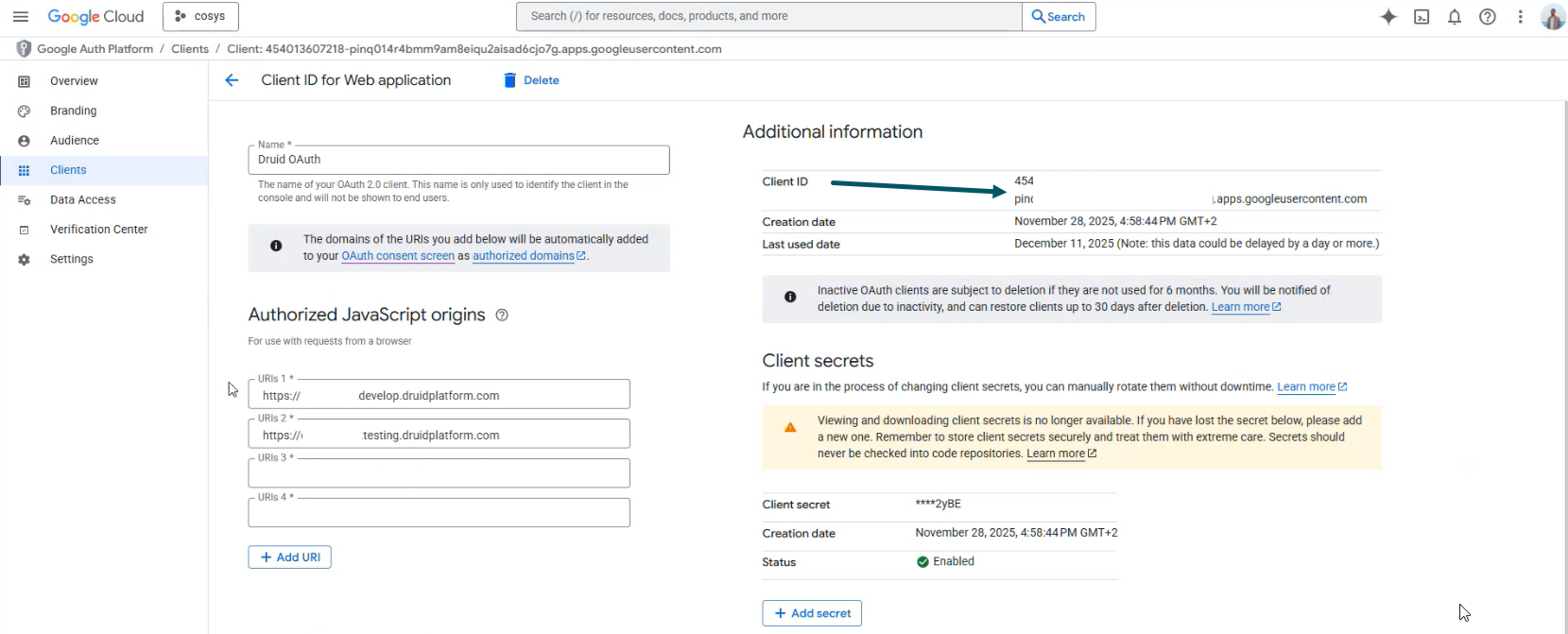
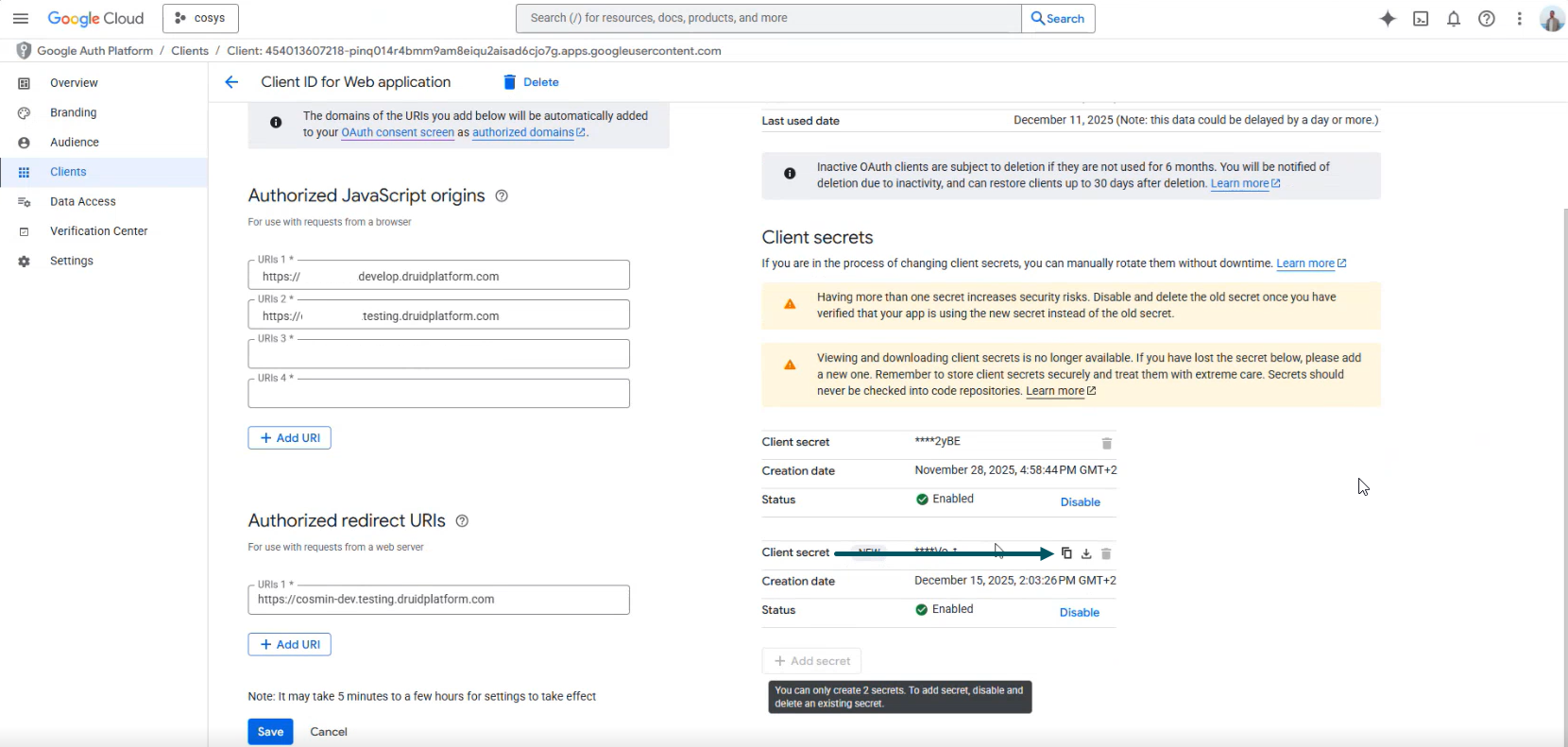
Save the settings by clicking the Save all button at the top-right corner of the page.
Step 3. Allow user registration and activate new accounts
Druid provides built-in functionality to manage user registrations. To allow new users to register themselves to the Druid Portal, on the Administration menu, click Settings. In the Settings page, click the User Management tab, and in the Form-Based Registration area, select Allow users to register to the system.
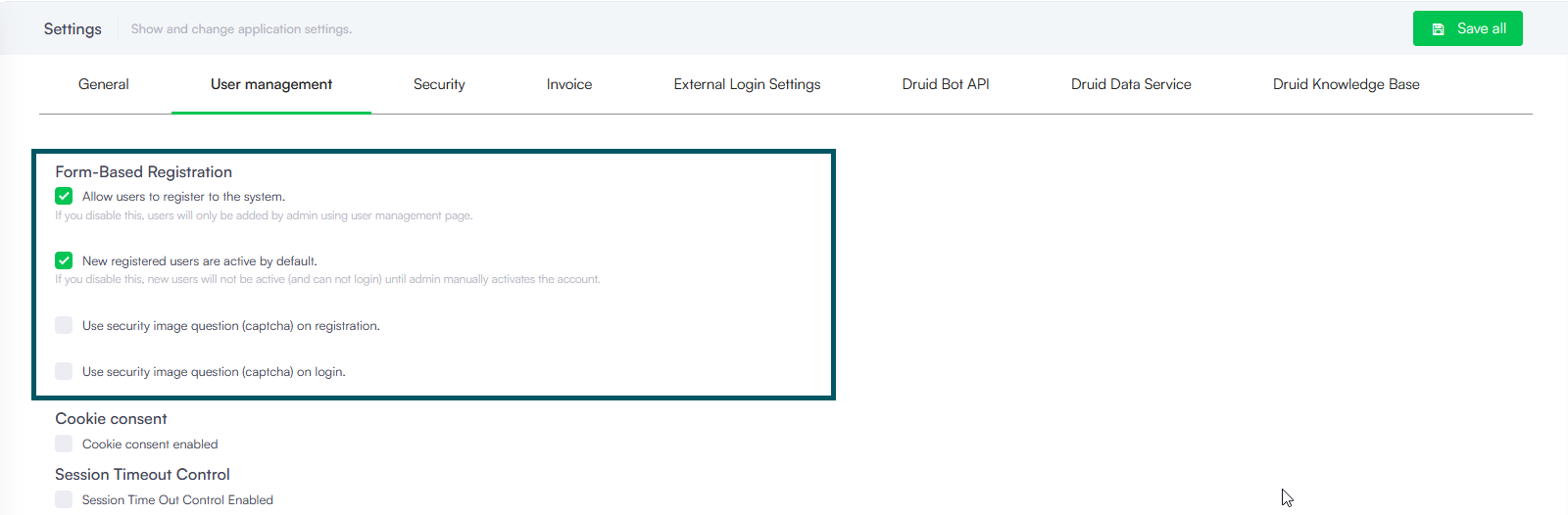
By default, new users are inactive and unable to log in until their Druid administrator manually activates their accounts.
To activate new self-registered users, select New registered users are active by default.
Save the changes. New users can now register themselves and access the Druid Portal.
Step 4. Review provisioned users roles and privileges (ongoing task)
New users provisioned in Druid are automatically assigned with the roles marked as default.
Whenever a new user is provisioned in Druid Portal, you as the Portal admin get an email notification. You might want to review the user’s assigned roles and make the proper changes based on business need to know (roles and privileges).